


A multi-camera livestream takes two or more cameras, switches between them live and sends one continuous programme to your audience. To run one you need cameras with a clean output, a way to bring the feeds together (a hardware switcher, or capture devices and software on a computer), an encoder, solid audio and a wired internet connection. Get those five things matched to each other and rehearsed, and the stream will look calm and deliberate rather than busy.
We get asked about multicam setups by people planning talks, panels, podcasts and product demos. The honest answer is that most of them need fewer cameras and more planning than they expect. Here's how we'd approach it, in the order we'd plan the day.
When is a multi-camera livestream worth the effort?
In a multicam stream, footage from two or more cameras is captured at once and switched, by hand or automatically, into a single output. There's a quiet bonus too: if one feed drops, you cut to another and the audience never knows.
It earns its keep when:
- The event can't be paused. Talks, lectures, panels and performances don't allow retakes, and covering them with several cameras means you're not relying on an edit afterwards.
- There's more than one thing to watch. Concerts are the classic example — one camera follows the performers while another holds the wide. The same guide notes that switching angles helps remote viewers feel part of a virtual event or conference.
- You'd rather skip post-production. Cutting live means you're not spending hours afterwards adding scenes and transitions to a recording.
For one presenter talking straight to camera, one good camera is often enough. Add a second when a close-up and a wide would genuinely show the viewer something different — a presenter and the product on the table in front of them, say.
How do you plan the shots before buying kit?
Most multicam problems start life as planning problems. A useful method is to list the moments you can't afford to miss and match each one to an angle, so every camera has a job. If an angle never gets used, the plan was too vague.
Write a one-page run sheet
Nothing fancy. For each segment, note:
- Start time and running order.
- Which camera is live at the top of the segment.
- Cues for graphics, video clips or guests.
- A fallback shot — usually the wide — for when a cut goes wrong.
It's the same discipline we use on photo shoots: one clear document, sent ahead, keeps everyone on the same page.
Decide where the signal is going
Before you place a single tripod, settle the outputs: stream only, stream plus a recording, or separate feeds for editing later. Defining every output early shapes both the shot plan and the signal route, so it comes first.
Walk the room and place the cameras
Look for sightlines, bright windows behind the speaker, shiny surfaces and the spots where guests will inevitably stand. Once you've chosen tripod positions, tape the footprints so everything goes back in the same place after a break.
A typical three-camera layout for a talk or panel:
| Camera | Position | Job |
|---|---|---|
| A | Centre, at the back, long lens | Main shot of the speaker or panel |
| B | Wide, offset to one side | Establishing shot and safety cut |
| C | Close, on the other side | Reactions, detail or demonstration |
Interviews and podcasts are less forgiving, because the viewer spends the whole time looking at faces. Our guide to podcast camera angles covers where each lens should sit so the framing feels natural.
Filming somewhere you don't control — a venue, a rented room, a public space? Get permission in writing. This UK guide to location releases explains what the paperwork covers and why it belongs in the plan.
What equipment do you need for a multi-camera stream?
The kit list is short. The catch is that every item has to suit the others.
- Cameras. Two or more HD cameras with HDMI or HD-SDI outputs. HD sources hold up noticeably better than SD, even once they're encoded at a lower bitrate.
- Matching settings. Same frame rate and resolution on every camera. Mixed frame rates cause stutter or conversion headaches at the switcher.
- Tripods or fixed mounts. Steady shots look far more professional than hand-held ones in a streamed talk.
- A switcher. The heart of the setup — a hardware unit or software on a computer.
- An encoder. Turns your programme feed into the stream that goes online, either as software or a dedicated box.
- Audio. A mixer or interface, proper microphones and headphones for monitoring.
- Cables and power. Cables rated for your run lengths, spares of everything, and power that won't drop out mid-stream.
- A multiview monitor. So you can see every camera at once, plus what's going out.
Hardware switcher or software?
A hardware switcher gives you physical buttons and a predictable workflow. Taking a professional SDI switcher as an example, the manufacturer's manual explains that you plug cameras into the SDI inputs, which convert and synchronise each source to the switcher's video format, and that its multiview output can show up to 16 views on one monitor. Smaller HDMI switchers work the same way for less money.
The cheaper route, and the one that suits one-person productions, is capture devices and software. Each HDMI camera goes into its own USB capture device and the computer sees it as a video source. In free software such as OBS you add each source, build a scene per shot and switch with hotkeys or a control pad.
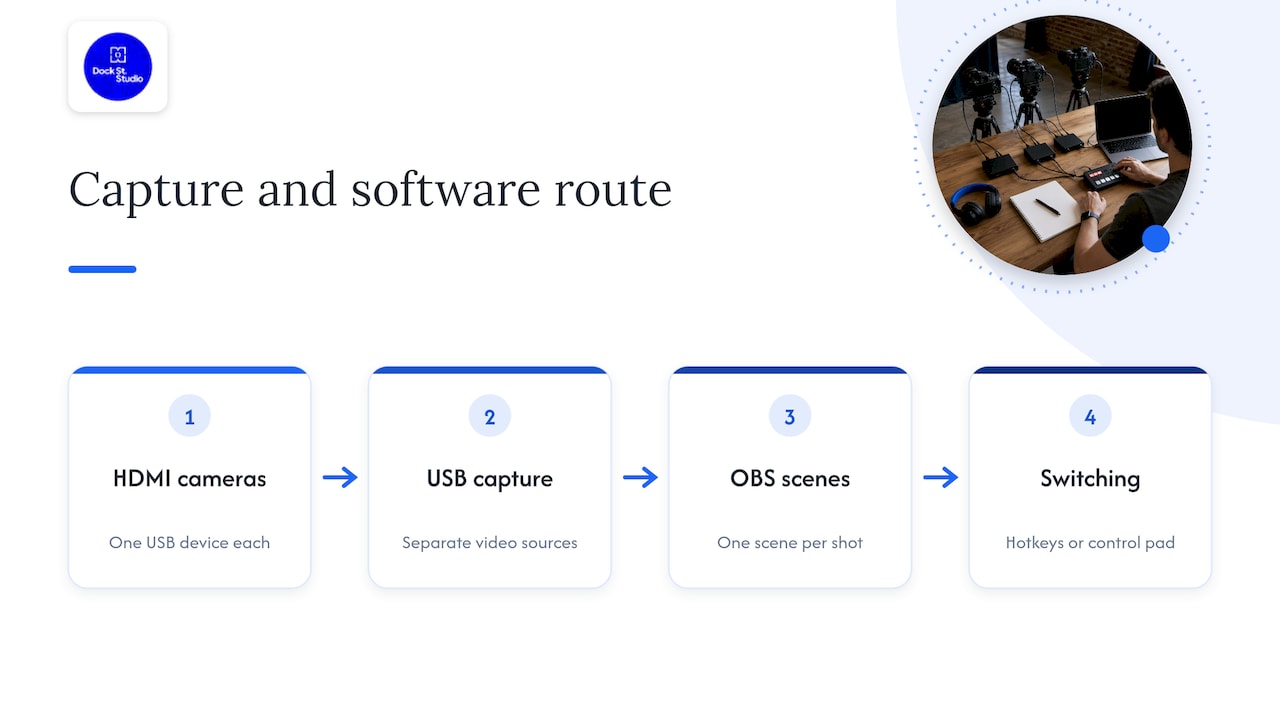
Two practical rules for the software route: put each capture device on its own USB controller where you can, so one bus isn't carrying everything, and make sure the computer has headroom to encode as well as switch.
How do you switch cameras so it looks deliberate?
On a switcher, a cut changes source instantly, while a transition changes it over a set duration. For live talks, plain cuts are nearly always right. Dissolves and wipes draw attention to the switching rather than the speaker.
A few habits that help:
- Cut on a change of speaker or a natural pause, never mid-sentence.
- Hold the wide for longer than feels necessary. Viewers like to see the room.
- Don't go back to the same angle twice in a row with nothing new in frame.
- When in doubt, stay on the safe shot.
If you're presenting and switching at the same time, lock the cameras off and let the framing do the work. Rehearse until your hand knows which key is which.
How do you get audio and internet right?
Audio is the number one cause of livestream problems, so give it more attention than the cameras. Test every mic and mixer feed on headphones, listening for hum, static and distortion. Pick one master audio source rather than letting each camera's built-in mic leak into the mix, and check the sound stays in sync when you switch.
On the connection side:
- Use a cable. Plug the encoding computer or hardware encoder into the router by Ethernet. Wi-Fi is a gamble for a stream you can't restart.
- Check upload, not download. Your upload speed needs to sit comfortably above the bitrate you're sending. Test it over a sustained period, not one quick run.
- Have a backup. A mobile hotspot or bonded connection beats hoping the line holds.
For resolution, 1080p is the sensible default for most talks and podcasts. It looks sharp on any screen and asks far less of your encoder and connection than 4K.
What should you test before going live?
A rehearsal finds problems while they're still cheap to fix. On the day:
- Set up on your marks. Cameras on their taped positions, every cable path labelled.
- Run a long speed test. Thirty minutes or more gives a truer picture than a quick check.
- Rehearse the whole chain with every source live. Watch the stream on a separate device on a separate network and check the audio sync.
- Check each camera. Framing, exposure, focus and white balance on every angle.
- Send a short private test. An unlisted stream of 10 to 15 seconds is enough, and it catches most of the usual problems.
- Put up a holding graphic or countdown half an hour before the start and confirm viewers can see it.
Then plan for things going wrong: camera signal loss, a software crash, an encoder failure, an internet dropout. Decide now what you'd do in each case. A spare camera, a spare cable and a ready wide shot cover most of it. Our livestream studio setup and testing guide goes through these checks in more detail.
Does the room matter as much as the kit?
Kit gets the attention, but the room decides how much of it you can actually use. A space that handles two cameras beautifully can come apart on a bigger setup if cables cross a walkway or the window light changes every ten minutes — and in Leeds it will.
That's why we put planning first. We work from a clear brief and shot list before anyone touches a camera, because it keeps the day to time and means you leave with what you came for. A livestream is no different: know what each camera is for, where it stands and what you'll cut to when something goes wrong.
If home or the office isn't suited to a multicam setup, a studio takes the space problem away. The light is controlled, there's room to place cameras and people properly, and there are no venue IT surprises. Our podcast and livestream studio in Leeds is set up for exactly this kind of session, and if you'd rather bring your own crew and kit, photography studio hire in Leeds starts from £125. Talk us through the brief first and we'll tell you plainly whether our space suits your stream.
Frequently Asked Questions
How many cameras do I need for a multi-camera livestream?
Two is the minimum, and it's plenty for most talks, interviews and tutorials: one main shot and one close-up or wide. Add a third only when it has a clear job, such as reactions or a demonstration. Every extra camera means more cables, more monitoring and more to go wrong.
Can one person run a multicam stream?
Yes, with two cameras. Use capture devices and software such as OBS, build a scene per camera and switch with hotkeys or a control pad. Lock the cameras off, rehearse the cuts and keep the plan simple enough to run while you're presenting.
Do I need a hardware switcher or is software enough?
Software is enough for two or three HDMI cameras and a capable computer. A hardware switcher suits longer or higher-stakes productions, because you get physical buttons, SDI inputs and a more predictable workflow. Choose by how many sources you have and how much risk you can live with.
Why does my multi-camera stream stutter or drift out of sync?
Check every camera is set to the same frame rate and resolution, and that each capture device has its own USB controller. Then check audio: one master source, lined up with the picture. A wired connection removes another common cause.
What resolution should I stream at?
1080p is the sensible default for most talks and podcasts. It looks sharp on any screen and is much easier on your encoder and upload speed than 4K.
Where is the studio?
Dock Street Studio is at Unit 9, 30–38 Dock Street, Leeds LS10 1JF, in central Leeds near Leeds Dock. There's onsite parking, and it's a short walk from Leeds train station.
Sources
- Multi-Camera Live Streaming | Cloudinary
- Multi-Camera Live Streaming: Quick Guide | Restream
- Multi-Camera Live Streaming: All You Need to Know
- Multi camera production
- How to Plan Multi-Camera Live Streaming
- How to plan a multicam setup for a live event
- How to Set Up a Multi-Camera Live Streaming Webcast | Dacast
- ATEM Constellation switchers manual
- Complete Church Livestream Checklist
- Corporate Livestream Production Checklist
- Location Release for a Music Video: A UK Guide
Plan your livestream with us in Leeds
Not sure how many cameras your stream really needs, or whether a studio would make the day easier? Tell us what you're planning and we'll talk it through properly over a brew. Book online, email mark@isophotographic.org, or call 0113 4400102.
Written by Mark Wheelwright
Commercial photographer & studio owner, Leeds | ISO Photographic Ltd
Dock Street Studio, Unit 9, 30–38 Dock Street, Leeds LS10 1JF
18+ years' experience | 900+ projects | 300+ five-star reviews | 1M+ shutter count
dockstreetstudioleeds.co.uk
Shot, written and built by the Dock Street team
Every guide on this blog comes from the team at Dock Street Studio — Mark behind the camera with 18+ years' experience, Nicole on styling and lighting, Beya on video and bookings and Austin keeping the site fast and findable. If you'd rather have us do it than read about it, book a session or explore our photography services in Leeds.