


For a steady 1080p livestream you want an upload speed of at least 10 to 12 Mbps. For 720p, 6 to 8 Mbps is a sensible target, and 4K needs 35 Mbps or more. Download speed barely comes into it. What matters is how fast your connection can send video out, and how much of that capacity you leave spare.
We get asked this a lot by people planning webinars, panel talks and launches, usually a day or two before they go live. So here's how to turn a platform's bitrate into a real upload figure, how much headroom to leave, what else can wreck a stream on a perfectly fast line, and how to test properly before the day.
How much upload speed do you need for each resolution?
Resolution and frame rate set the bitrate, and the bitrate sets the upload you need. As Community Fibre puts it, higher resolution means more pixels per frame, and higher frame rate means more frames per second — both push the number up.
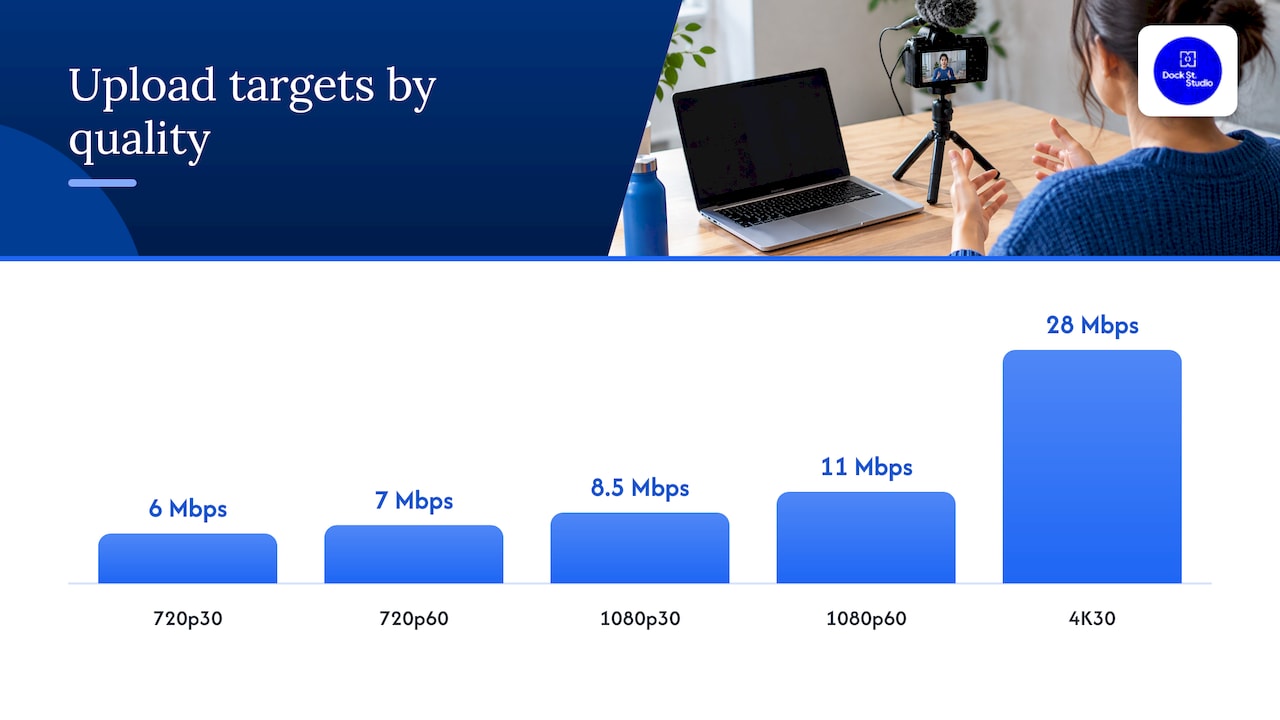
The figures below come from Livepush's live streaming bandwidth guide, and they already include some headroom above the stream's own bitrate.
| Quality | Typical bitrate | Upload to aim for |
|---|---|---|
| 720p, 30fps | 3 to 4 Mbps | 6 Mbps |
| 720p, 60fps | 4.5 to 5 Mbps | 7 Mbps |
| 1080p, 30fps | 4.5 to 6 Mbps | 8.5 Mbps |
| 1080p, 60fps | 6 to 8 Mbps | 11 Mbps |
| 4K, 30fps | 15 to 20 Mbps | 28 Mbps |
Other guides land in roughly the same place. Elgato treats 1080p60 at 6 Mbps as a practical target and recommends at least 10 to 12 Mbps of upload for it, while Sky suggests 5 to 10 Mbps upload as the minimum for hosting a livestream, with 15 Mbps or more a good figure.
The ranges differ because the assumptions differ: codec, platform, whether you're streaming fast gameplay or one person talking to camera, and how much margin each author builds in. Treat the numbers as a band, and pick the top of it if the stream matters.
Why does upload speed matter more than download?
When you watch a video, your connection is receiving. When you livestream, it's sending — and on most UK home and office broadband those two speeds are very different. A package sold at several hundred Mbps down might only give you a small slice of that going up.
Streamlabs draws a useful line between the terms: upload speed is how fast you send your stream, bandwidth is your total capacity, and latency is the delay in getting data across. It also notes that packet loss can drag quality down even when the stream stays connected.
So when a broadband deal promises "fast", look for the upload figure. If it isn't on the page, it's usually the smaller number. Symmetrical or near-symmetrical connections suit streaming well, and Fibre Compare's guide for creators makes the same point: livestreaming is upload-intensive, so symmetrical broadband and a wired connection are real advantages.
How do you work out the upload speed your stream needs?
No guesswork needed. Three steps get you a number that fits your stream.
- Pick your output. Decide on resolution and frame rate. A talking-head webinar or interview rarely needs 60fps; fast movement does.
- Find the bitrate. Your platform and encoder settings give you this. Elgato lists typical upper limits of 6 Mbps for Twitch up to 1080p, 8 Mbps for Kick, 9 Mbps for Facebook Live and up to 40 Mbps for some YouTube 4K60 streams.
- Add headroom. Multiply the bitrate by 1.4 to 2, depending on how busy your network is.
The logic behind step two is simple: bitrate is how much data goes out each second, so your connection needs to at least match it to avoid dropped frames and lag. Step three is what keeps the stream calm when something else on the network wakes up.
How much headroom is enough?
The advice varies a little, but it all points the same way — don't run your line flat out.
- NVIDIA suggests running a speed test and then using around 75% of your upload for the stream.
- YouTube's help pages say that on shared connections you should aim for an upload speed 1.5 to 2 times your combined target bitrate.
- Fibre Compare recommends allowing an extra 20 to 50% above the minimum, especially when other people are online.
- Livepush gives a formula: required upload equals bitrate multiplied by 1.4, to cover protocol overhead, jitter and background traffic.
A worked example
Say you're streaming a webinar at 1080p30 with a 6 Mbps bitrate.
- Using the 1.4 factor: 6 × 1.4 = 8.4 Mbps of upload.
- Using the 1.5 to 2 times rule: 9 to 12 Mbps.
- Using the 75% rule: 6 ÷ 0.75 = 8 Mbps.
The sensible target sits between 9 and 12 Mbps of real, measured upload. If your test shows 8 Mbps, you're on the edge — drop to 720p, lower the bitrate or sort the connection out first.
Streaming to more than one platform changes the sum, because the bitrates add together. That's why YouTube talks about the combined bitrate. We cover the set-up side in our write-up on multi-platform streaming.
What do Twitch, YouTube and the other platforms ask for?
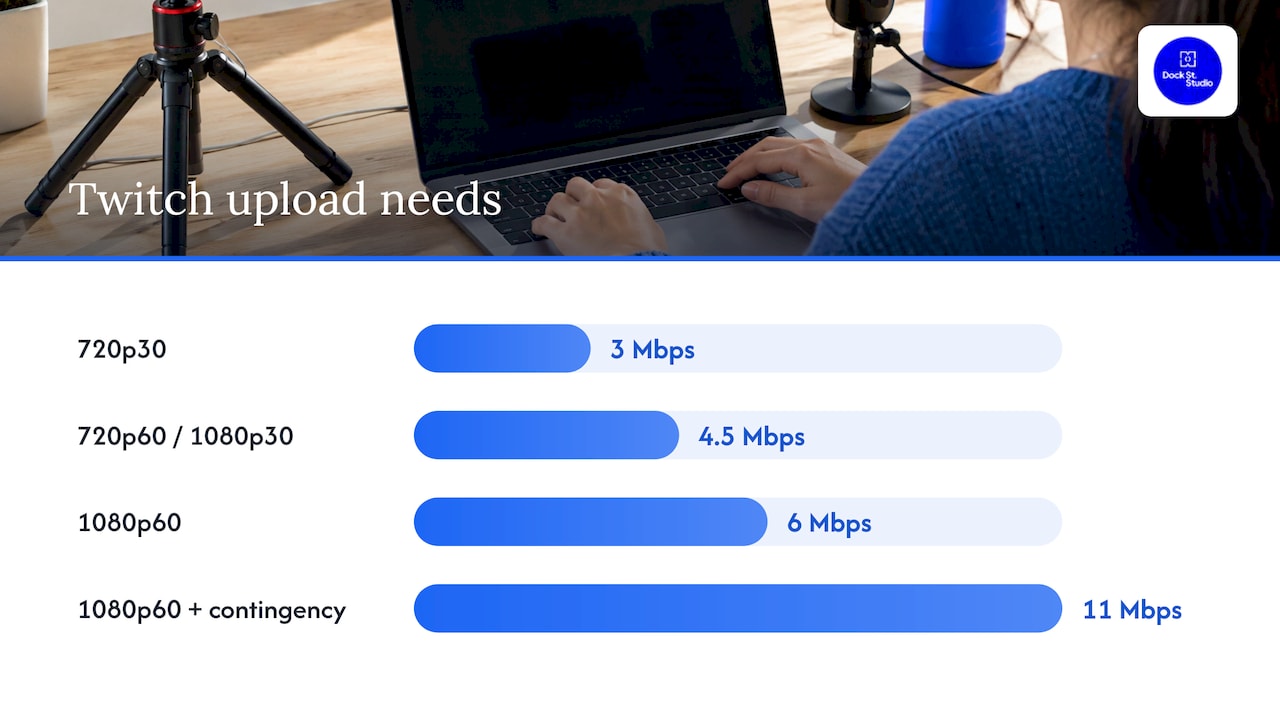
Platform limits cap your bitrate, which in turn caps the upload you need. Community Fibre lists Twitch minimums of 3 Mbps for 720p30, 4.5 Mbps for 720p60 and 1080p30, and 6 Mbps for 1080p60, then adds 5 Mbps of contingency — which puts 1080p60 on Twitch at about 11 Mbps of upload.
NVIDIA's table is handy for encoder settings too, pairing 4 Mbps of upload with a 3 Mbps bitrate, and 10 Mbps of upload with an 8 Mbps bitrate at 1080p — consistent with leaving a quarter or so spare.
4K is a different league. Elgato puts a 25 Mbps YouTube 4K stream at about 35 Mbps of total upload, which few UK connections deliver reliably. That's one reason 1080p is the practical default for most business streams.
A quick way to choose:
- Interviews, panels and talks: 1080p30 is plenty, and kind to your connection.
- Product demos with movement: 1080p60, if your upload clears 12 Mbps or so.
- Slow or patchy line: a steady 720p30 beats a 1080p stream that keeps stalling.
What else causes buffering and dropped frames?
A healthy speed test doesn't guarantee a clean stream. The Broadband Internet Technical Advisory Group explains that quality depends on latency as well as throughput, and that high latency or jitter can hurt video streaming. Put simply, a big pipe that stutters is worse than a smaller one that holds steady.
The usual culprits:
- Wi-Fi. Fibre Compare recommends a cable because Wi-Fi can cause lag, audio sync problems or disconnection when the signal briefly drops. Plug the encoder in.
- Everyone else on the network. Elgato points out that a 10 Mbps line shouldn't be fully taken up by a 10 Mbps stream, because chat, cloud backups and other devices need room too. Pause backups and big uploads before you go live.
- A bitrate the line can't sustain. That's the classic cause of stuttering, buffering and dropped frames.
- Peak-time congestion. Evening speeds on shared networks can fall well below what you saw at lunchtime.
Two habits help more than anything: close whatever syncs in the background, and make one person responsible for the network on the day, so nobody starts a huge upload in the next room twenty minutes in.
How do you test your connection before going live?
A speed test takes seconds, but it's worth doing properly.
- Connect the computer you'll stream from by Ethernet — thinkbroadband advises that upload should be tested directly over Ethernet where possible.
- Close other apps and ask everyone else to stay off the network.
- Run the test (it normally takes about 20 seconds) and note the upload figure, not the download.
- Repeat at the time of day you'll actually be live. "Up to" speeds drop with line length, congestion, wireless and shared users.
- Compare the result with your target. Dacast recommends an actual upload speed of at least double your total streaming bandwidth.
A speed test is an indication, not a promise, so run a private test stream at your real settings before the broadcast. Our guide to livestream studio setup and testing walks through a full rehearsal.
Should you plan the stream before the speed?
We plan every shoot around the brief, and livestreams are no different. "What speed do I need?" is really three questions: what are you showing, who's watching, and what happens if something goes wrong?
A talking-head announcement doesn't need 4K60. It needs a clean 1080p picture, clear audio and a connection nobody else is leaning on. Settle the resolution, platforms and running order first — they decide the bitrate, and the bitrate decides the upload.
Treat the figures here as a planning floor, then add margin. Streams rarely fail at the moment you test them; they fail twenty minutes in, when someone down the corridor joins a video call.
Streaming from a studio in Leeds
If your office or home line can't reach these numbers, or you'd simply rather broadcast from a proper space, our podcast and livestream studio in Leeds is set up for exactly this kind of work. You can also book photography studio hire in Leeds from £125 if you'd like to run the day yourself.
Before any booking we talk through your brief, platforms and running order over a brew, so the technical decisions are settled before you arrive rather than on the morning.
Frequently Asked Questions
What upload speed do I need to livestream in 1080p?
Aim for 10 to 12 Mbps of real, measured upload for 1080p at 60fps, and around 9 Mbps for 1080p at 30fps. That covers the stream itself plus overhead and anything else on the network. If the broadcast matters, plan for the top of the range.
Does download speed matter for livestreaming?
Much less than upload. Download is what you use to watch; upload is what carries your stream to the platform. You still need a reasonable download to monitor the stream, read chat and take calls alongside it.
Can I stream on 5 Mbps upload?
Yes, at lower settings. Twitch's 720p30 minimum is around 3 Mbps, so 720p with a modest bitrate can work. Keep the bitrate low and keep everyone else off the network while you're live.
Should I stream over Wi-Fi or Ethernet?
Ethernet, whenever you can. Wi-Fi signal can dip for a second or two, which shows up as lag, audio drifting out of sync or a dropped stream. A cable keeps things steadier and gives you a more honest speed test.
How much spare upload should I leave?
Keep the stream at roughly 70 to 75% of your measured upload, or have 1.4 to 2 times your bitrate available. If you're sending to several platforms at once, add their bitrates together first.
Where is the studio?
Dock Street Studio is at Unit 9, 30–38 Dock Street, Leeds LS10 1JF, near Leeds Dock in central Leeds. There's onsite parking, and it's a short walk from Leeds train station.
Plan your livestream in Leeds
If you've got a stream coming up and want it to go smoothly, get in touch and we'll help you plan the set-up. Book online, email mark@isophotographic.org, or call 0113 4400102.
Sources
- Best Internet Speed for Live Streaming Games, Community Fibre
- How Much Upload Speed Do You Need to Live Stream? Livepush
- How Fast Should My Internet Be To Live Stream, Elgato
- What Is A Good Internet Speed For Streaming? Sky
- What is a good internet speed for live streaming? Streamlabs
- Broadband guide for streamers and content creators, Fibre Compare
- Setting up bitrate, StreamVi
- NVIDIA NVENC OBS Guide
- Stream across platforms, YouTube Help
- Latency Explained, BITAG
- Broadband Speed Test, thinkbroadband
- Internet Speed for Streaming: 2026 Upload Speed Guide, Dacast
Written by Mark Wheelwright
Commercial photographer & studio owner, Leeds | ISO Photographic Ltd
Dock Street Studio, Unit 9, 30–38 Dock Street, Leeds LS10 1JF
18+ years' experience | 900+ projects | 300+ five-star reviews | 1M+ shutter count
dockstreetstudioleeds.co.uk
Shot, written and built by the Dock Street team
Every guide on this blog comes from the team at Dock Street Studio — Mark behind the camera with 18+ years' experience, Nicole on styling and lighting, Beya on video and bookings and Austin keeping the site fast and findable. If you'd rather have us do it than read about it, book a session or explore our photography services in Leeds.